Skip logic and display logic
Skip logic and display logic show a question only when earlier answers call for it, so each person sees only the questions that apply to them. In a ConductExperience questionnaire each question can have a rule: it shows only when its rule holds, and a question it hides is skipped, with no answer.
Rules like these can also end a questionnaire early, run a part of a study only for some people, or end the study after a part. A screen can repeat for each option a person chose or each row of a list. Each person can see some screens or parts drawn at random, and a question can offer only the options chosen earlier.
Rules on questions
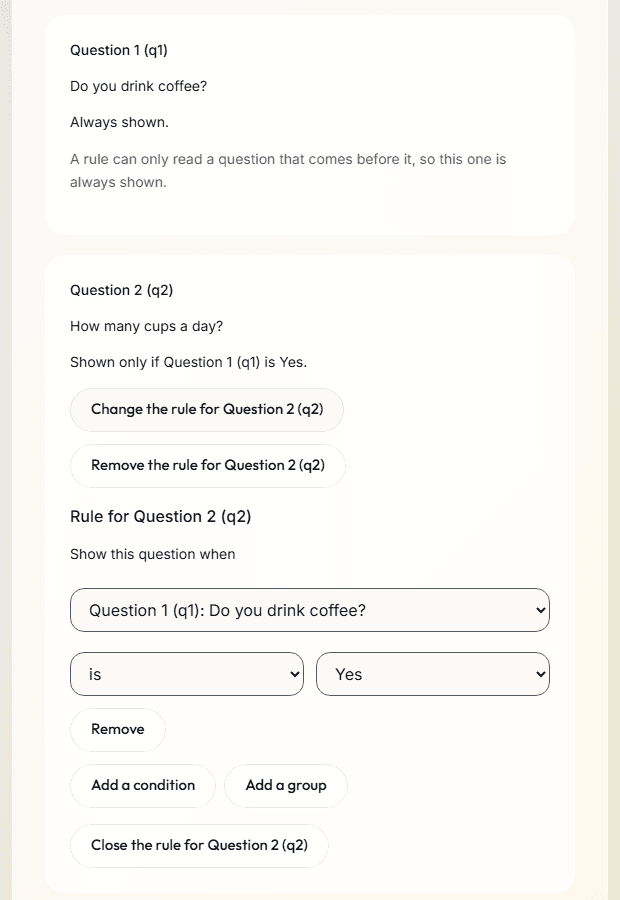
- In a questionnaire's Logic section, a question can have a rule: "Show this question when", then a condition, such as Do you drink coffee? is Yes.
- Conditions combine as "all of these are true" or "any of these is true". A group mixes the two, as in (A or B) and C, and groups can go 10 levels deep.
- Each rule reads as a sentence under its question, such as "Shown only if Question 1 (q1) is Yes."
- A rule reads the questions before it. For a grid, a ranking or a constant sum it reads each row, rank or amount, and for a repeated question each repeat. It also reads the values ready by then: a value from the link, the group or the round before, and a worked-out value once the answers it reads are in.
- A question whose rule does not hold is skipped and has no answer, and a screen with nothing left to show is passed over.
- A comparison with "is not", or "does not include" on a multiple choice, is false while the earlier question has no answer or is hidden, so the question it would show stays hidden too.
| Question | Comparisons |
|---|---|
| Single choice | is, is not, is one of, has an answer; when its options count as numbers in a score, also is more than, is at least, is less than and is at most |
| Multiple choice | includes, does not include, includes any of, has an answer |
| Rating scale, slider, line scale and number | is, is not, is more than, is at least, is less than, is at most, has an answer |
| Yes or no, short text, long text, date and time | is, is not, has an answer |
| Grid, ranking and constant sum | has an answer; each row, rank or amount is compared as a question of its own |
| Click on a picture and file | has an answer |
| A question on a repeated screen | has an answer; each repeat is compared as the question |
An image choice compares as the single or multiple choice it is, and a preference test as a single choice.
Skip logic or display logic
Skip logic sends a person past later questions after an answer. Display logic shows a question only when a condition holds. Here each rule sits on the question it shows, as display logic does, and a skip is what the rules on the later questions do. An end rule on a new screen ends the questionnaire, as a skip to the end does.
To skip questions 3 and 4 when question 2 is No, give each of them the rule: question 2 is Yes. A rule cannot send a person ahead to a later question, so a skip is always a rule on each question it passes over.
A Qualtrics survey file (.qsf) brings its display logic, its skips to the end of the survey and its branches in as these rules, when the editor can write their conditions.
What a .qsf file brings overEnd a questionnaire early
- To end the questionnaire early, give a new screen an end rule in the Logic section: "End the questionnaire before this screen when", then its conditions. It reads as "The questionnaire ends here if Question 1 (q1) is No."
- The answers given before the end are kept, and the questions after it are blank. The answers table has a column for each end rule, such as p2_end, which holds 1 when that rule ended the questionnaire there and 0 otherwise.
- In a study, the person then goes on to the next part. To end the study instead, give that part End the study after this part when in the study builder. To turn people away before a link study starts, use its first questionnaire as a screener, with a Turn away when rule.
Rules on the parts of a study
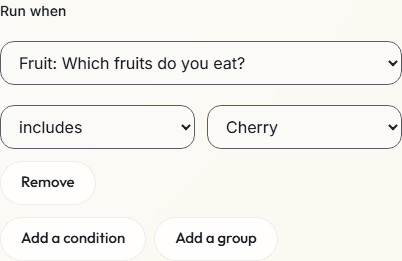
- A part can run only when a rule holds (Run when), and the study can end after a part, as finished, when a rule holds (End the study after this part when). A rule reads the questionnaire parts every person sees before the part, values from the link and the person's group, and End the study after this part when can read the part itself too. In a study with later visits or check-ins, the session ends there instead, and they go on as planned.
- A part whose Run when does not hold is passed over, and events.csv logs part_skipped, with the part in its step_id column.
- A screener runs for everyone, so it has no Run when.
- Check stops a rule that reads a part some people may not have finished by then, and Preview follows the rules for the group you preview.
Repeat for each
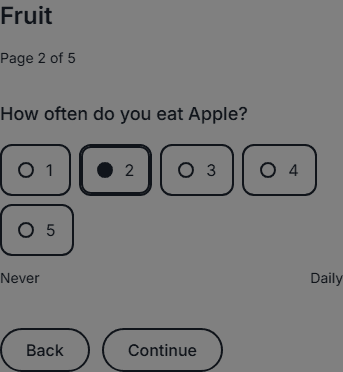
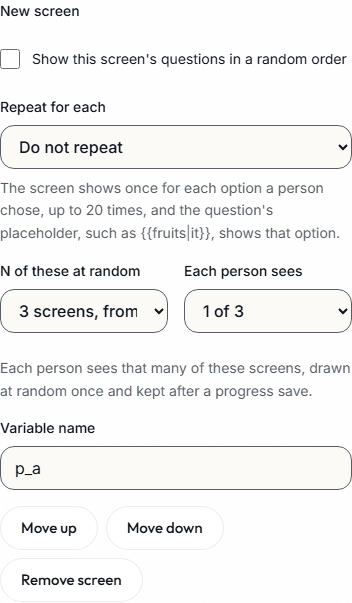
- A new screen can repeat once for each option a person chose in an earlier multiple choice, up to 20 times, and a placeholder such as {{fruits|it}} shows that option, as in "How often do you eat Apple?" Each repeat is its own screen with its own answer, and an option that goes alone, such as None of these, never repeats. A screen can also repeat once for each row of a list from the Lists section.
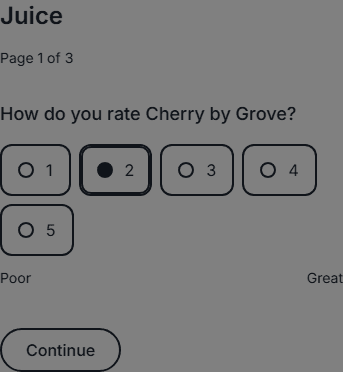
- A list holds rows you enter, such as products to rate, each with a text for each field. A new screen can repeat once for each row (Repeat for each), in order, or for a number of rows drawn at random for each person (Each person sees), in a random order and kept after a progress save, up to 20 times. On it, placeholders show that row's texts: with the fields juice and maker, "How do you rate {{juice|it}} by {{maker|its maker}}?" reads "How do you rate Plum by Vale?"
- A repeated screen holds instructions and single choice, rating scale, slider, line scale, number, short text, long text, date and time questions. It cannot hold another type, such as a multiple choice (so no check all that apply) or a preference test.
- A repeated screen's questions, and a question that offers only some options, cannot be attention checks, and the Scores tab offers no repeated question.
- A rule can read each repeat of a repeated question, such as the repeat for Cherry, but a later question's words cannot show its answers.
Screens and parts at random
- N of these at random shows each person some of a new screen and the screens after it, as many as you choose, in a random order, drawn once and kept after a progress save.
- A section's Each person sees can show each person some of its parts, drawn at random once and kept when the person comes back and at each visit, in the section's order. The draw is not balanced across people: a study that needs balance uses groups.
Options offered
- A single choice, a multiple choice or a grid can offer only the options chosen, or not chosen, in an earlier multiple choice: Options offered, or Rows offered for a grid. Its other options, such as None of these, always show, and a question left with none of the options it carries is not shown.
- Options offered matches options by their number, not their words. The editor numbers a question's options, and a grid's rows, 1, 2, 3 in the order you add them, so write the later question's options in the same order as the multiple choice's.
A value from the group
- A value can hold the name of the person's group, which rules and placeholders read, with a column in the download. It comes with a file: a Qualtrics randomizer that sets a field, or a questionnaire file (.json). The editor shows it and has no button to add one.
- A rule can read it, such as Value from the group (arm) is "b", so each group sees its own questions.
How to build them
- In a questionnaire's editor, open Logic and press Add a rule for the question that shows only sometimes. Choose the earlier question, the comparison and the value.
- To end the questionnaire early, tick Start a new screen before a question, then press Add an end rule for that screen in Logic.
- To repeat a screen, start a new screen after a multiple choice, or add a list under Lists, and choose Each option chosen in that question, or Each row of the list, under Repeat for each.
- To show screens at random, choose N of these at random on a new screen, then how many of them each person sees.
- To offer only some options, write the later question's options in the same order as the multiple choice's, then choose Only those chosen, or Only those not chosen, under its Options offered, or Rows offered for a grid.
- In the study builder, choose a part and press Add a rule under Run when or End the study after this part when. A section's Each person sees sets how many of its parts each person sees.
- Open the Check tab, preview the study as a participant, and publish it.
Limits
- A rule cannot send a person ahead to a later question: each question shows by its own rule, and an end rule ends the questionnaire. A skip to a later question in a Qualtrics file does not come over, and the import's report says so.
- A study's Preview shows the same screens and list rows drawn at random each time it opens, and Draw again changes only the order of screens and options. Each pilot or participant session draws its own.
Results and the download
On Results, each question counts its people as answered, not shown or no answer, so a question a rule hid is not counted as left blank. A repeated question shows its figure for each option or row it repeated for, as a grid does for its rows.
In the download, a repeated question has a column for each option it can repeat for, or each row of a list, such as often__1 for Apple, and a cell is blank for an option the person did not choose or a row not drawn for them. A set of screens or a list drawn at random adds a column that names the screens or rows drawn, and subsets.csv has a row for each draw.
Every table of the downloadRelated
Survey software
Every question type of the questionnaire editor, with rules, scores and languages.
Study builder
The parts, groups, orders and versions of a study, with rules on its parts.
Open a .qsf survey file
Bring in a survey you built elsewhere, and read the report before anything is added.
Screener surveys
How to write screener questions, with rules and quotas.
Planning a study?
Start one now, or tell us what you want to measure.