Run a study by link
Run an online study from one link. People open it on their own computer or phone, agree and take part in their browser. They never make an account or sign in.
Send the link to a panel such as Prolific, Sona Systems or CloudResearch Connect, or to a mailing list. At the end, people get your completion code and a button back to the panel.
20
links in a study
each with its own panel, limit and dates
10,000
people through one link
the largest limit a link can have
What a link holds
| Setting | What it does |
|---|---|
| Name | Only you see it. Use it to tell links apart, for example the panel and the week. |
| Panel | A preset that reads the participant ID the panel puts in the address. |
| Completion code | The code a person gets at the end of a finished study. The panel checks it. |
| Completion address | Where the button at the end goes. It can carry the completion code and the participant ID. |
| Screen-out address | Where a person goes if they do not agree or cannot take part. |
| Quota-full address | Where a person goes when the quota for their answer is full. Without it, they go to the screen-out address. |
| Language | In a study with more than one language: the study's first language, one of its other languages, or The person chooses, which shows a picker on the first page. The consent, instructions and end message stay in the language you wrote them. |
| Most people | The most people the link takes, up to 10,000. A person who left counts until you release their place. |
| Opens and Closes | Dates when the link starts and stops taking people. Leave them empty to open now and never close. |
| Starts per minute and per hour | How fast people can start, 100 a minute and 300 an hour unless you change them. |
Panels
Each preset reads the participant ID the panel adds to the link, and keeps the values it names beside it.
| Preset | Participant ID in the address | Also kept |
|---|---|---|
| Prolific | PROLIFIC_PID | STUDY_ID, SESSION_ID |
| Sona Systems | id | None |
| CloudResearch Connect | participantId | assignmentId, projectId |
| Qualtrics | ResponseID | None |
| Generic link | id | None |
| Custom | The name you give | The names you give |
Set-up steps for each panel
Make a link with the panel chosen, from Share on a live study's page or New link on its Links page. Then:
- Prolific
- Copy the link's address and paste it into Prolific as it is. It ends in ?PROLIFIC_PID={{%PROLIFIC_PID%}}&STUDY_ID={{%STUDY_ID%}}&SESSION_ID={{%SESSION_ID%}}, which Prolific fills in.
- Prolific sends the participant ID as PROLIFIC_PID, with STUDY_ID and SESSION_ID, which are kept with it.
- Put Prolific's completion code in the link's Completion code, and https://app.prolific.com/submissions/complete?cc={completion_code} in its Completion address. At the end, people get the code and a button back to Prolific.
- Sona Systems
- Copy the link's address and paste it into Sona Systems as it is. It ends in ?id=%SURVEY_CODE%, which Sona Systems fills in.
- Sona Systems sends the participant ID as id, the person's survey code.
- For credit to be granted when a person finishes, put the completion address Sona Systems gives you in the link's Completion address, with {participant_id} for the survey code, such as https://yourschool.sona-systems.com/webstudy_credit.aspx?experiment_id=123&credit_token=TOKEN&survey_code={participant_id}.
- CloudResearch Connect
- Copy the link's address and paste it into CloudResearch Connect as it is. CloudResearch Connect adds the IDs when it sends a person.
- CloudResearch Connect sends the participant ID as participantId, with assignmentId and projectId, which are kept with it.
- Put the completion code CloudResearch Connect gives you in the link's Completion code. At the end, people get the code, and CloudResearch Connect checks it.
The QR code and the finished IDs
- Every link has a QR code to show on a screen. Show QR code, on the link's card, draws it.
- On a link from a panel, Copy finished IDs copies the panel IDs of everyone who finished, separated by commas, so you can approve them on the panel.
Values from the link
- A questionnaire can take values from the link a person opens: ?arm=b gives arm the value b. Rules and placeholders read a value as they read an answer, and the download has a column for each. Up to 10 are kept for each person when they start. Each value is 1 to 128 letters A to Z, digits and _ . ~ : -, starting with a letter, a digit or _. Any other value, such as one with @ or an accented letter, is left out, so an email address stays out of the data, and the person still starts. The editor refuses a name that looks like a personal detail, such as email or phone.
- On the Links page, an open link's card has Values from the link when the study takes any. Write a value to make an address that carries it. Nothing is saved: the values travel in the address, as a panel's ID does. A value that would be left out, such as one with @, is marked Check under its box, with the reason, and no address is made. Copy link and Show QR code use the address without values.
- If the study takes more than 10 values from the link, Check warns and names the ones after the first 10, which stay blank. The link uses completion_code, participant_id and lang for itself, so Check warns on a value with one of those names, and it stays blank. A value named like one the panel adds to the link, such as its participant ID, stays blank too, since the panel's values are kept with its participant ID.
- A return to the link, a later visit, the screener and the check-ins read the values kept when the person started, not the address they open later.
What participants see
- The first page: the study's name, how long it takes and what it needs, with a check of the browser and device.
- Consent: your consent text and an I agree button. A webcam turns on only after it, and never records sound.
- When the study records gaze, a page to measure the screen with a card, which the person can skip.
- The study, one part after another.
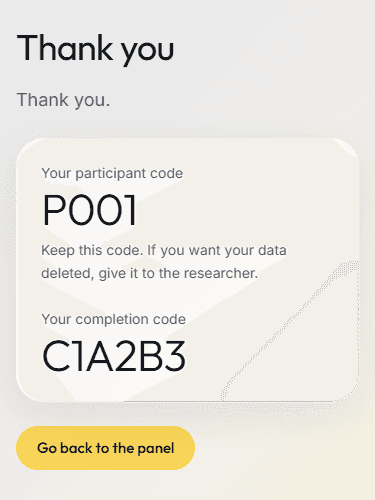
- The end page: the person's participant code, your completion code and a button back to the panel.
- The pages and messages come in English, Spanish, French, German, Italian, Japanese, Chinese (Simplified) and Portuguese (Brazil). In a language outside these, the questionnaire is in that language and the pages around it are in English.
The check before they start
- The check never turns the camera on.
- It stops a browser that cannot send a session, a page without a secure connection, a camera the study needs and cannot find, and a touch-only phone or tablet when the study has tests that need a keyboard.
- It notes a missing camera when the camera is optional, and a window too small for gaze.
Screeners, quotas and the sign-up check
- The study's first questionnaire can be its screener: choose Use as a screener, and write the rule as Turn away when, in the same editor as the other rules.
- A person who does not fit reads one sentence you can edit. A panel participant goes back to the panel's screen-out address.
- A quota sets a target for each answer of one required question with fixed answers, across all the study's links. When an answer's quota is full, people who give it are turned away: they read one sentence, and a panel participant goes back to the quota-full address.
- Participants never see the screener's rules, so they cannot work out which answer gets them in. Two people who race for a quota's last place cannot both get it, and a person turned away stays turned away.
- The Links page shows each answer's Finished, In progress and Target, and the Participants page marks who was turned away.
- A built-in check stops automated sign-ups, with no outside service.
If someone leaves
- On a link, the browser saves the person's progress as each part starts and at each page of a questionnaire.
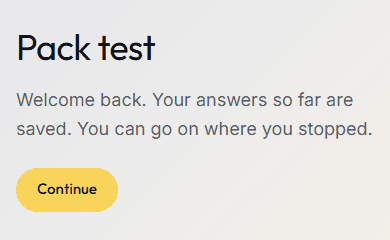
- Back on the same link in the same browser, they continue where they stopped: a questionnaire at its page, with the earlier answers kept. Other parts start again from their beginning.
- The session clock pauses while they are away, and the time of each return is recorded.
- If they never come back, what they finished is kept, except the webcam measures. An hour after their last save, the Participants page marks them as Left, and Release frees their place.
Answers that arrive
- If the network drops, the answers wait in the browser and are sent again, also when the person comes back to the link.
- The completion code appears only once the answers have arrived.
When a link turns people away
| When | What the person reads |
|---|---|
| The link is closed | This link is closed. The researcher is not taking new people through it. |
| Before it opens | This link is not open yet. |
| The study is paused | This study is paused. It is not taking new people right now. Try again later. |
| The study has ended | This study has ended. Thank you for your interest. |
| The link is full | This study has enough people right now. Thank you for your interest. |
| Too many starts at once | Many people are starting right now. Wait a minute, then try again. |
| A panel ID used before | This participant ID has already been used for this study. If you think this is a mistake, contact the researcher. |
Follow who takes part
- An email when a study's first participant finishes, one a day while people finish, and one when a link reaches its target. Email me when people finish, on Account, switches them off.
- A response is marked when its finish was very fast beside the study's others, and, from a link or a booth, when text was pasted into an answer or the page was left. The download also marks who missed an attention check or gave the same answer throughout, and Results counts them. Nothing is removed, and you decide what to do.
How it works
- Publish and launch the study. On the study's page, Share asks where your participants come from: your own list or class gets a link in one step, and a panel such as Prolific opens the link form with the fields it needs first.
- Put the link in the panel's study page, send it to your list, or show its QR code.
- People open it, agree and take part. At the end they get your completion code.
- Follow each person on the Participants page, and download one export.
What you get in the data
- A row for each person in participants.csv, with how they started, the link they came through, and the screener's verdict: fits, turned_away or quota_full.
- A panel's participant ID is kept apart from the session data. The export adds it to participants.csv unless you turn off Include panel IDs.
- A column in participants.csv for each value the study takes from the link, as the link page kept it when the person started.
- The link's pages never ask for a name or an email. Each person is a code such as P001.
- With the camera on, face and gaze are measured in the browser. The video never leaves the person's computer.
Limits
- A study with cognitive tests needs a computer with a keyboard. Studies of questionnaires, images and video also run on phones and tablets.
- The completion code is the same for everyone on a link, and nothing is sent to the panel itself.
- A person can continue only in the browser where they started.
- In the lab and on tablets, a screener runs as a plain questionnaire.
- In the lab, on tablets and in a preview, values from the link are blank.
Related
Study builder
The parts, groups, orders and versions of the study the link runs.
Longitudinal studies
Later visits after the first one, each person with a private return link.
Survey software
The question types, rules, scores and languages of the questionnaire editor.
Face and gaze
Facial expression, blinks, head movement and gaze from a standard webcam.
Screener surveys
How to write screener questions, with rules and quotas.
Planning a study?
Start one now, or tell us what you want to measure.